Walkthrough
How to use KalaBond.
Seven steps, in the order you’ll actually meet them. Every screenshot on this page is the real app — nothing here is a mock-up, and the people in them are invented.
Before you start
Signing in
KalaBond needs an account, because your people are yours and nobody else should be able to read them. Enter an email address and a password, then open the confirmation email we send you — the link signs you in. If it doesn’t arrive within a minute or two, check your spam folder before trying again, since a second sign-up with the same address will simply tell you the account already exists.
There is one screen you can reach without an account at all, and it’s the one your friends use — step six.
01
See who you’ve drifted from
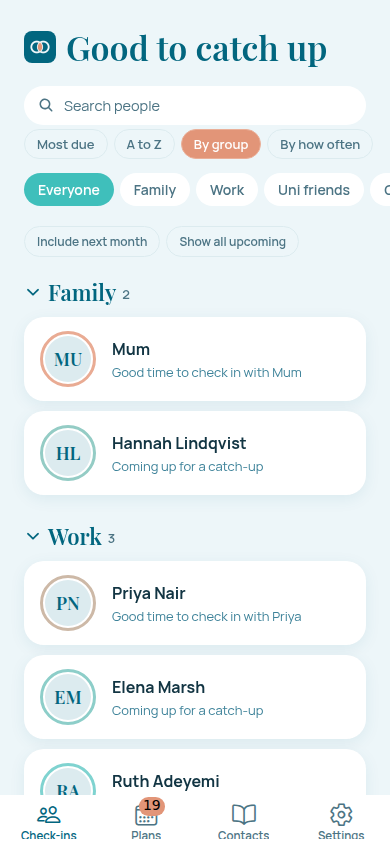
Check-ins is the screen KalaBond opens on. It lists the people you haven’t spoken to in a while, and the ring around each set of initials is the whole idea: it shifts from turquoise towards coral as time passes. Coral means now would be a good moment. There is no red badge, no counter going up, and nothing that treats a friendship as a streak you can break.
At the top, Worth a moment picks out up to three of those people — the ones it has been longest since you spoke to, measured against the rhythm you chose for each of them rather than against everyone else’s. No AI chooses them: it’s your own rhythm, read back to you. Birthdays have their own card above it and never turn up here.
Reach out opens that person’s message composer with Just say hi already chosen — pick something else if the moment calls for it. The box starts empty, and nothing is drafted for you until you ask (step three).
Beside each name, ••• holds the other three answers. Not now hides that suggestion and lets the next person who’s due take the slot — it isn’t a timed snooze, so waiting alone won’t bring them back, though they can come round again as things change between you. Mute reminders turns catch-up reminders off for that person until you turn them back on (step four). View contact simply opens their card.
Under the card, Sort arranges the list — Most due, A to Z, By group or By how often — and Filters narrows it to one group, or widens the month window with Include next month and Show all upcoming. Sorting never hides anyone; when a filter does, a line under the toolbar says what you’re seeing.
02
Add the people who matter
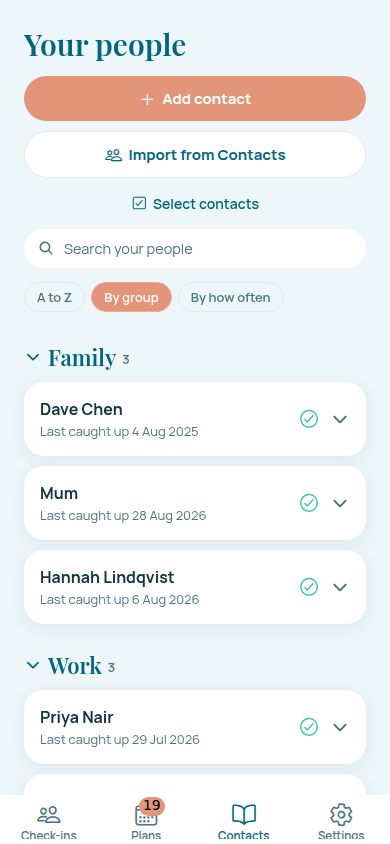
On Contacts, add someone by hand or import them from your phone’s address book. Importing shows you the list first and lets you pick — KalaBond never takes the whole book, and it doesn’t upload contacts you didn’t choose.
Put people into groups you name yourself — Family, Work, Uni friends, whatever fits your life. Someone can belong to several at once, because most people do.
03
Open someone’s card
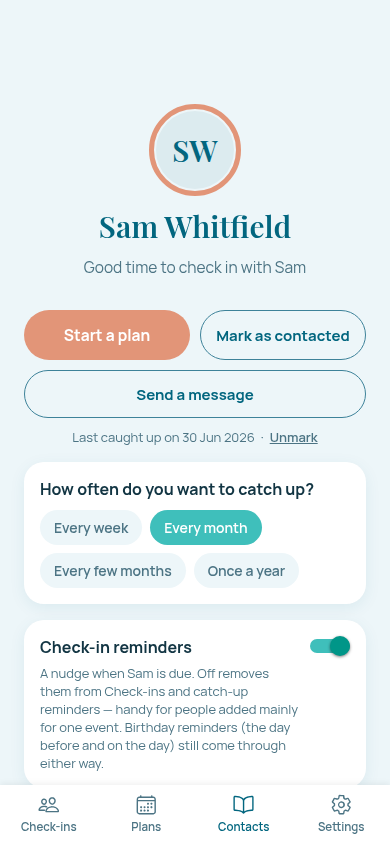
Tapping a person opens everything KalaBond knows about catching up with them. Mark as contacted records that you spoke, which resets their ring — and if you tap it by mistake, Unmark takes the last one back rather than wiping the history.
Send a message drafts something for you when you can’t face a blank text box — it’s where Reach out lands from Worth a moment, with Just say hi chosen and the box still empty. Start a plan jumps straight to step five. You can also set a nickname, so drafts call them what you call them, and a birthday, which gets its own quiet reminder the day before and on the day.
04
Choose a rhythm that fits the friendship
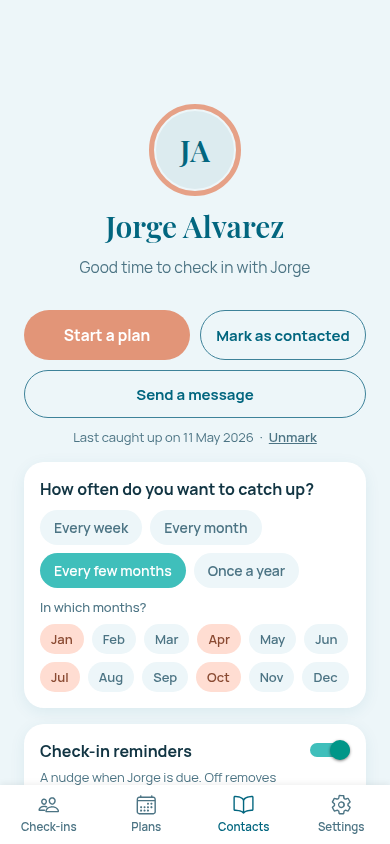
Every person gets their own: every week, every month, every few months or once a year. That’s the number the ring counts against, so a friend you speak to twice a year doesn’t sit in the list looking neglected.
For the slower rhythms you can pin the months instead — January, April, July, October, say, or just December for the person you catch up with over the holidays. Then KalaBond waits for the month rather than counting days since you last spoke.
Somebody you added for one event and don’t need nudging about? Under Catch-up on their card, turn Check-in reminders off for them. Their birthday still comes through.
That row is the one Mute reminders flips from Worth a moment, so it is also where you turn a muted person back on. Muting keeps them out of Check-ins, so look for them on Contacts: tap their name, and switch Check-in reminders on again under Catch-up.
05
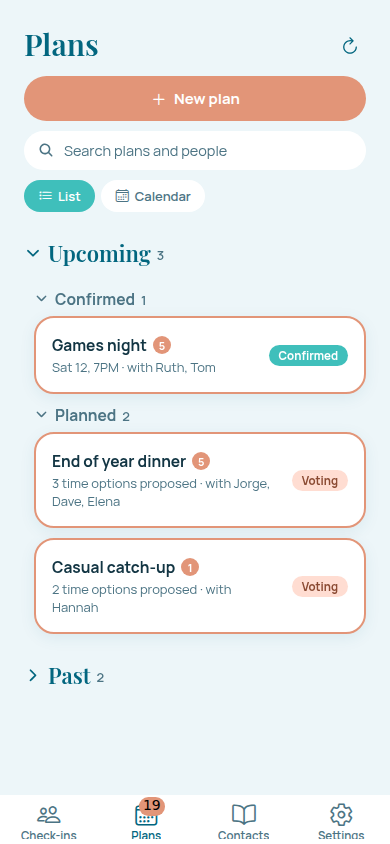
Turn the nudge into a plan
Knowing you should call someone was never the hard part. Getting several adults into the same room on the same evening is.
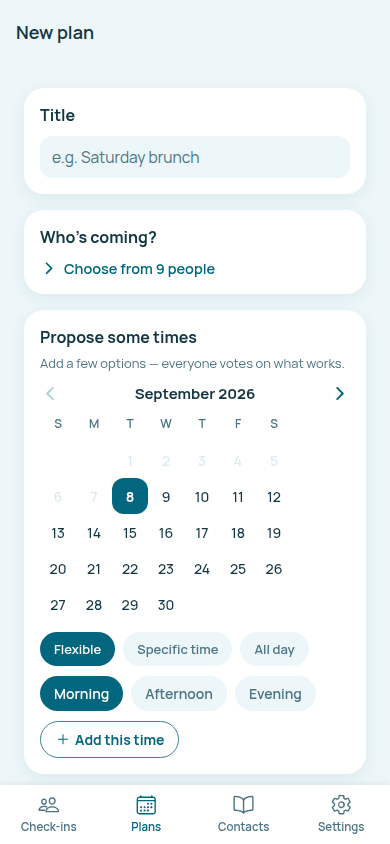
A plan needs a title and who’s coming. After that, propose times — as loosely or precisely as you like, from a whole day down to an exact hour — and let everyone pick. Add a place, or offer a few and let people vote on those too.
- A bring list, if it’s the kind of evening where somebody has to remember the bread.
- Anything useful — an address, a menu, a map link — attached to the plan itself.
06
Share it — they don’t need the app
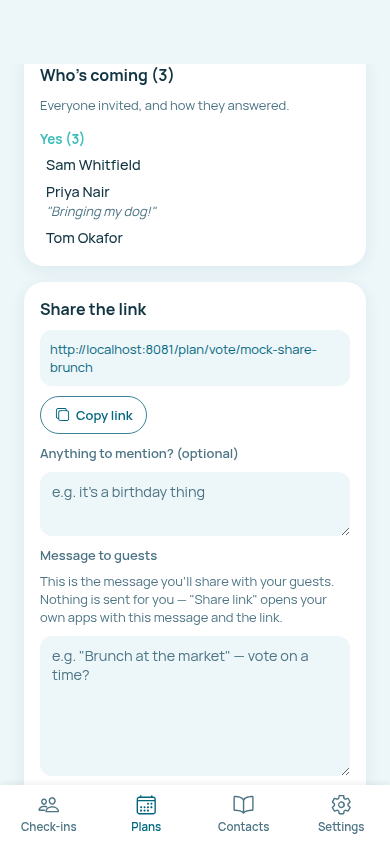
This is the part that decides whether a plan happens. Every plan has one link. Send it however you already talk to those people, and they open a page in their browser and vote. No download, no account, no sign-in.
They pick the times that work, RSVP yes, maybe or no, and can leave a note with it — “bringing my dog”, “might be ten minutes late”. Someone forwarded the link who wasn’t on your list can add themselves, and you approve them before they see anything.
When a time wins, lock it in. On your phone, KalaBond will offer to put it in your calendar.
07
Make it yours
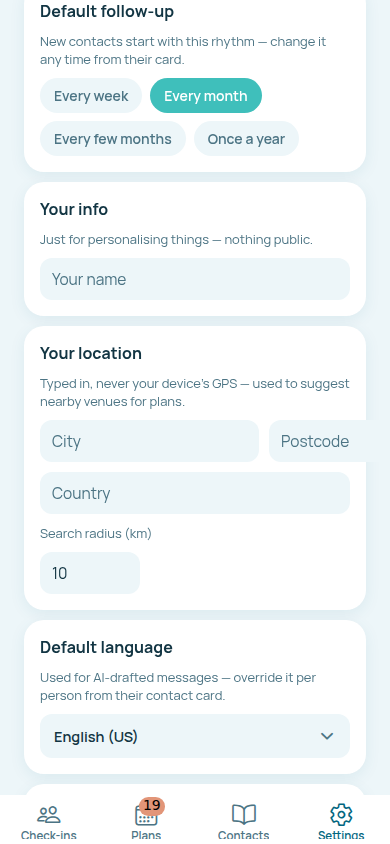
Settings is where you set the rhythm new contacts start on, name your groups, and tell KalaBond roughly where you are — typed in as a city and postcode, never read from your device’s GPS — so venue suggestions are somewhere you’d actually go.
Drafted messages can be written in any of fourteen languages, set once here and overridden per person. Paste in a few messages you’ve actually sent and drafts will try to sound like you rather than like a greetings card.
Under Knowledge you can replay the welcome walkthrough or come back to this page, so nothing here is something you only get one chance to read.
The same screen holds the things you’d come looking for: the privacy policy, a copy of everything we hold on you, and deleting your account.
While you’re here
A few things people ask first
- Do my friends have to install anything?
- No. Voting and RSVPs happen on a web page, in whatever browser they already have.
- Will it read my whole address book?
- No. Importing shows you your contacts and you choose which ones to bring in. Nothing else leaves your phone.
- Does AI decide who I should talk to?
- No. Worth a moment and the Check-ins list both go by the rhythm you set for each person and how long it’s been since you last caught up. AI only ever writes a draft message, and only when you ask it to.
- Does it use my location?
- Only the city and postcode you type into Settings. KalaBond never asks for a GPS permission.
- Why don’t I get notifications on the web?
- Reminders are local to the app on your phone. The web version has everything else.
- Can I get my data out, or delete it?
- Both, from Settings, without emailing anyone. Deleting is permanent and says so before you confirm.
Anything this page didn’t answer — tell us, and we’ll add it.
That’s the whole app.
Seven steps, and most of them you’ll only do once. The rest is opening it now and then and finding out who you’ve been meaning to call.